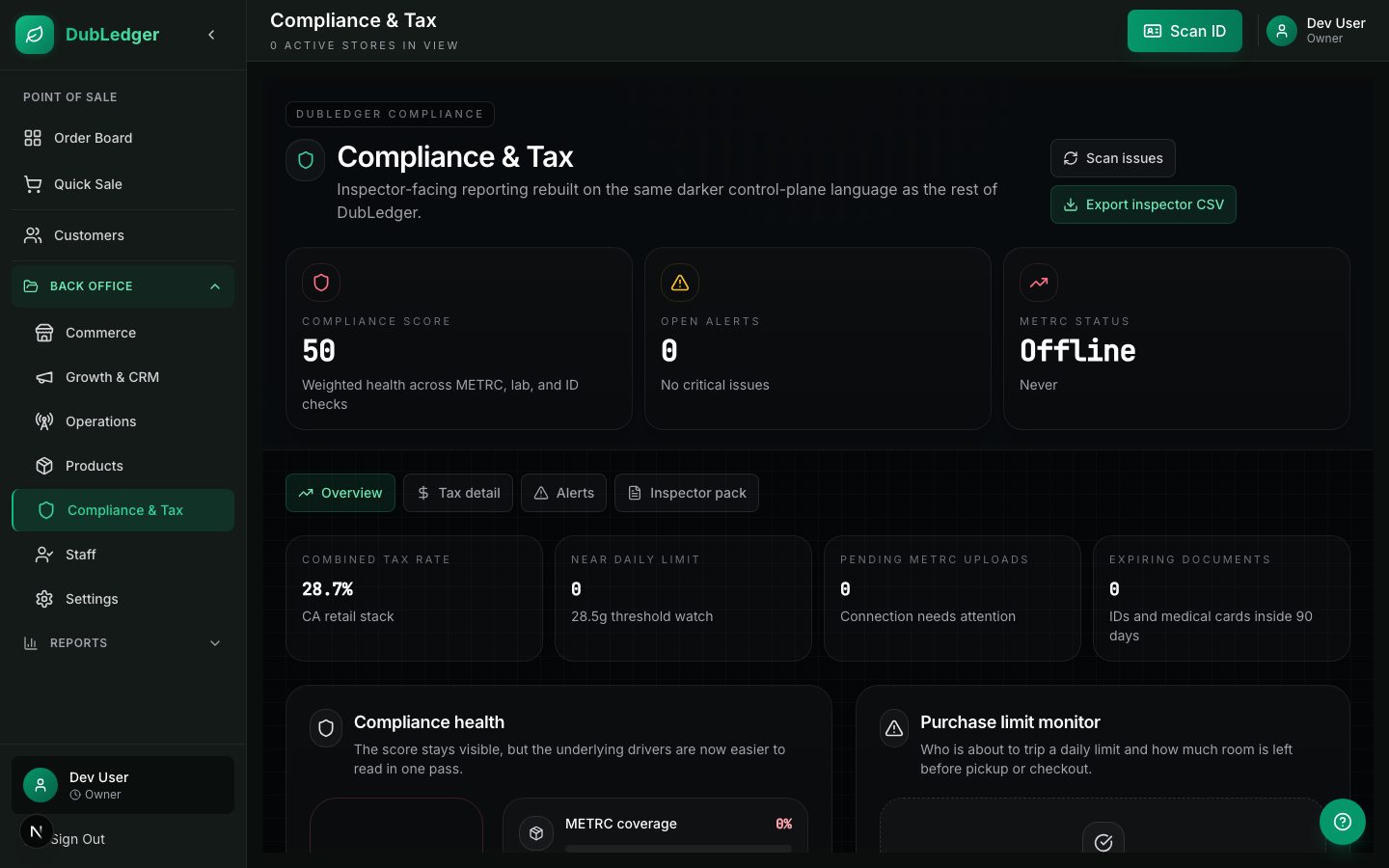
Compliance Monitor & Score
DubLedger includes a real-time compliance monitoring engine that continuously scans your operation for compliance issues.
#
What the Monitor Checks
Product Checks
- Missing METRC Package ID: Products without a linked METRC package tag.
- Expired Lab Tests: Products with lab tests older than 1 year from harvest date.
- THC Without Lab: Products with THC percentages but no lab test verification.
Customer Checks
- ID Expiring Soon: Customer IDs expiring within 30 days.
- Medical Card Expiring: Medical cards approaching expiration.
- Purchase Limit Proximity: Customers at 80%+ of their daily or monthly limits.
Transaction Checks
- Unreported METRC Transactions: Sales older than 1 hour that have not been reported to METRC.
#
Compliance Score (0-100)
Your compliance score is a weighted calculation:
| Component | Weight | What It Measures |
|-----------|--------|------------------|
| METRC Coverage | 25% | Percentage of products with valid METRC package tags |
| Lab Test Coverage | 25% | Percentage of products with current lab tests |
| Customer ID Health | 20% | Percentage of customers with valid, unexpired IDs |
| METRC Reporting | 20% | Percentage of transactions successfully reported to METRC |
| Alert Health | 10% | Percentage of alerts that are resolved vs open |
Score Interpretation
- 90-100: Excellent compliance posture.
- 70-89: Good, but some areas need attention.
- 50-69: Concerning, immediate action required.
- 0-49: Critical, risk of regulatory action.
#
Viewing Your Score
1. Go to Back Office → Compliance.
2. The Overview tab shows your current score with a breakdown.
3. Each component is shown with its current percentage and contribution to the total.
4. Click any component to see the specific items affecting it.
#
Compliance Alerts
When the monitor detects an issue, it creates a compliance alert:
Alert Severity
- Critical: Immediate action required (e.g., METRC reporting failure).
- Warning: Should be addressed soon (e.g., ID expiring in 30 days).
- Info: Informational (e.g., customer approaching purchase limit).
Alert Lifecycle
1. Monitor detects issue and creates alert.
2. Alert appears in the compliance dashboard.
3. Manager reviews and takes action.
4. Manager resolves the alert with a resolution note.
5. Alert is archived but retained for audit history.
Managing Alerts
- Go to Back Office → Compliance → Alerts.
- Filter by severity, type, or status.
- Click an alert to see details.
- Resolve with a note explaining the action taken.
- Escalation rules can auto-notify owners for critical alerts.
#
Running a Manual Scan
The monitor runs automatically, but you can trigger a manual scan:
1. Go to Back Office → Compliance.
2. Click Run Compliance Scan.
3. The system scans all products, customers, and transactions.
4. New alerts are created for any issues found.
5. The compliance score is recalculated.
This is recommended before inspections or after bulk inventory changes.
#
Inspector Report
Generate an inspector-ready report:
1. Go to Back Office → Compliance → Inspector.
2. Click Generate Inspector Report.
3. The report includes:
- Dispensary information and license details.
- Current compliance score and breakdown.
- METRC coverage summary.
- Lab test coverage summary.
- Customer ID health summary.
- Transaction reporting status.
- Alert history and resolutions.
4. Export as PDF for the inspector.
#
Improving Your Score
METRC Coverage
- Ensure all products have valid METRC package tags.
- Run METRC sync regularly.
- Verify package tags when receiving inventory.
Lab Test Coverage
- Upload lab test results for all products.
- Replace expired lab tests promptly.
- Link lab test URLs to product records.
Customer ID Health
- Remind customers to renew expiring IDs.
- Verify ID expiration at every visit.
- Update customer profiles with new ID information.
METRC Reporting
- Ensure real-time sync is enabled.
- Monitor sync error logs.
- Address sync failures immediately.
Alert Resolution
- Review alerts daily.
- Resolve with detailed notes.
- Address root causes to prevent recurrence.