Processing Sales
How to process in-store transactions from start to finish.
Processing Sales
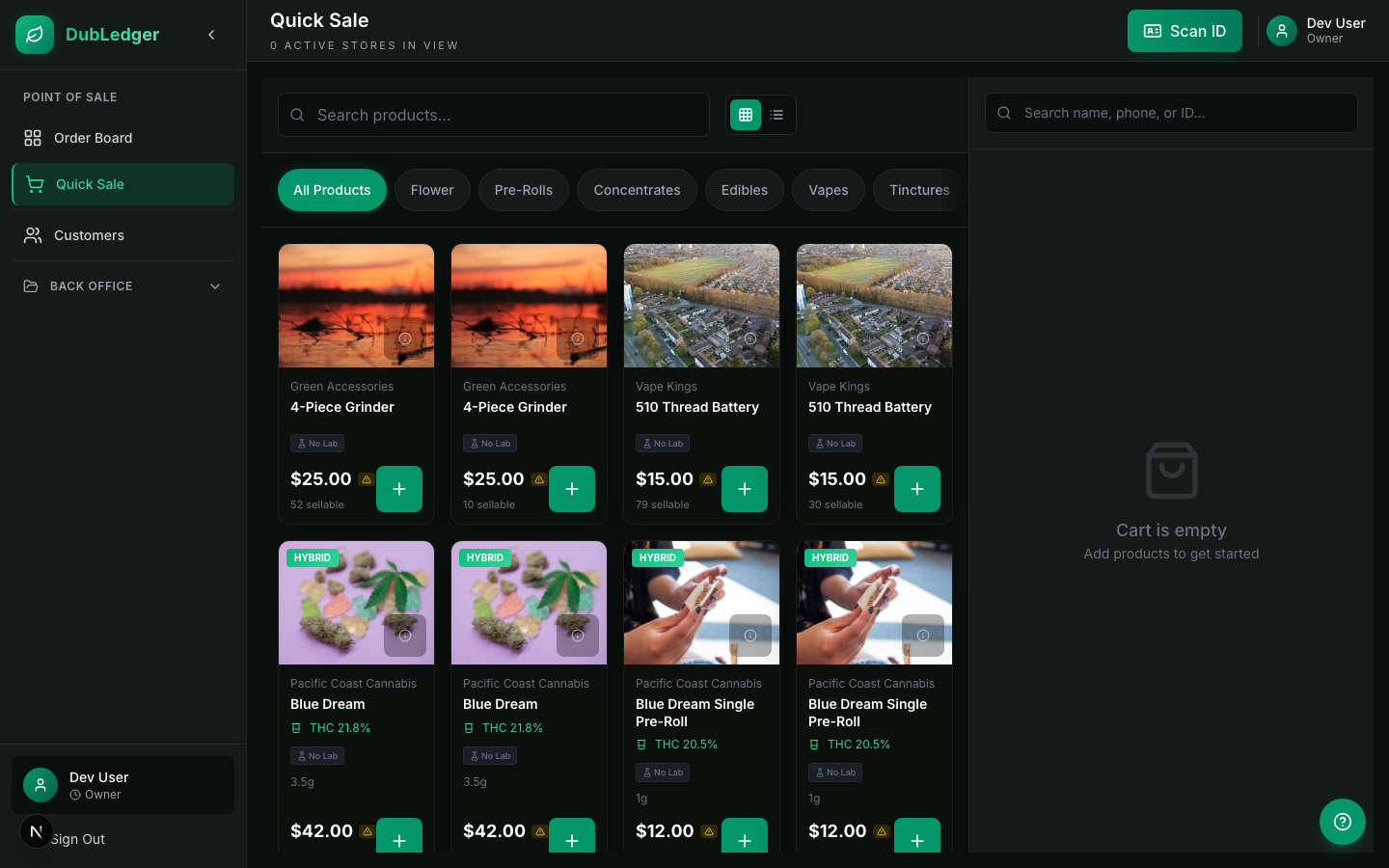
The DubLedger POS is built for in-store cannabis sales with compliance checks built into the flow.
Quick Sale flow
-
Open Quick Sale
- Press
F2or tap Quick Sale in the sidebar. - The screen splits into product browsing on the left and the cart on the right.
- Press
-
Add products
- Tap a category to browse products.
- Tap a product tile to add it to the cart.
- Products show current stock levels.
-
Adjust the cart
- Tap the + or - buttons to change quantity.
- For weighted products, enter the exact weight.
- Swipe left on a cart item to remove it.
-
Select a customer
- Tap the customer area to search or add a customer.
- Enter the customer's ID number manually to verify age, expiration, and purchase limits.
-
Compliance check
- The system calculates equivalent grams for the cart.
- If the customer is underage, has an expired ID, or would exceed purchase limits, the sale is blocked.
-
Checkout
- Tap Checkout and review the order summary.
- Select Cash as the payment method.
- Enter the amount tendered and the system calculates change.
- Complete the sale.
Receipts
A receipt summary is shown on screen after the sale. DubLedger does not currently integrate with receipt printers, label printers, or scales, so physical printing is not supported.
Keyboard shortcuts
| Key | Action |
|---|---|
| F2 | Open Quick Sale |
| F5 | Open Order Board |
| F7 | Apply Discount |
| Esc | Close modal / Cancel |
| Ctrl + K | Search products |
| Ctrl + D | Search customers |