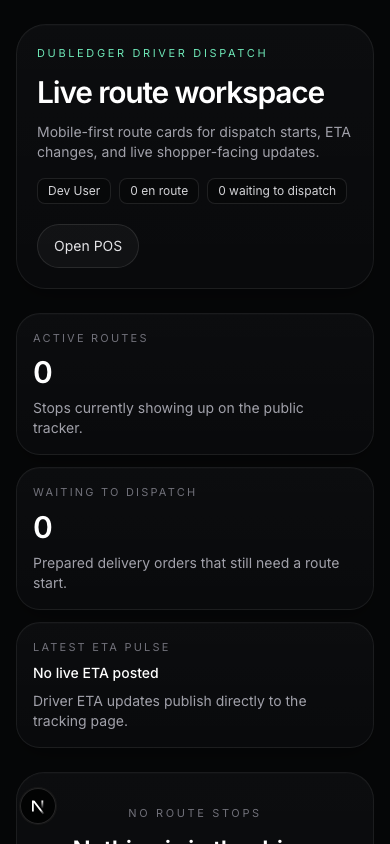
Driver Mobile App
The DubLedger Driver App provides everything drivers need to complete deliveries efficiently and compliantly.
#
Getting Started
Installing the App
1. Open the web browser on your smartphone
2. Go to driver.dubledger.com
3. Add to home screen for easy access (works like a native app)
4. Supported on iOS Safari and Android Chrome
Logging In
1. Enter your email address
2. Enter your password
3. Enable location services when prompted
4. You are now on the dashboard
Dashboard Overview
- Current status: Available, On Delivery, Off Duty
- Active orders: Number of assigned orders
- Earnings: Total earnings for the current shift
- Route: Next stop and ETA
#
Receiving Orders
Auto-Assignment → Orders appear automatically when dispatched. Notification sound and vibration alert. Tap to view order details. Accept or decline within 2 minutes. Declined orders go back to the dispatch pool.
Order Details → Customer name and address, order items and quantities, special instructions (e.g., "Gate code: 1234"), delivery time window, payment method (cash or card), customer phone number (anonymized).
Route Overview → Map showing all stops for the route, optimized order of stops, estimated total drive time, estimated completion time, option to open in Google Maps or Waze.
#
Navigation
In-App Navigation → Tap the Navigate button on an order. The app opens your default navigation app. Follow the directions to the destination and return to the DubLedger app when arrived.
Manual Navigation → You can use any navigation app you prefer. The DubLedger app runs in the background. Status updates are available when you return. GPS tracking works even when using other apps.
#
Status Updates
Updating Status → Picked Up (when you leave the dispensary), En Route (when driving to the customer), Arrived (when you reach the address), Delivered (when you hand over the order), Issue (if you encounter a problem).
Status Notifications → Each status update sends an SMS to the customer. Customer can track your progress in real-time. Dispatch and customer service see your status. Status updates include GPS location and timestamp.
#
Proof of Delivery
Required Steps
1. Verify customer's ID matches the order
2. Scan or photograph the customer's ID
3. Have the customer sign on your device
4. Take a photo of the delivered package (optional but recommended)
5. Tap Complete Delivery
ID Verification → Scan the barcode on the customer's ID. The app verifies age and expiration date. For medical deliveries, verify medical card. If ID is invalid, tap Cannot Verify ID and follow instructions.
Signature Capture → Customer signs using their finger on the screen. Signature is saved with the order record. For contactless delivery, the driver signs on behalf of the customer with a note.
Photo Proof → Take a photo of the package at the delivery location. Photo is geotagged and timestamped. Required for contactless or leave-at-door deliveries. Helps resolve disputes about delivery completion.
#
Handling Issues
Customer Not Home → Tap Issue → Customer Not Home. Wait 5 minutes (timer starts automatically). Call the customer using the anonymized number. If customer arrives, complete the delivery. If not, tap Return to Store. The order is marked as failed delivery and products are returned to the dispensary.
Wrong Address → Tap Issue → Wrong Address. Contact dispatch via the app. Dispatch will update the address or cancel the order. Follow dispatch instructions.
Payment Issues → Tap Issue → Payment Problem. Describe the issue (e.g., "Card declined", "Customer has no cash"). Contact dispatch for assistance. Do not leave the order until payment is resolved.
Product Issues → Tap Issue → Product Problem. Describe the issue (e.g., "Product damaged", "Wrong item"). Contact dispatch for resolution. May need to return to store for replacement.
Safety Concerns → Tap Issue → Safety Concern. Describe the situation. App sends immediate alert to dispatch and security. Follow dispatch instructions. If in danger, call 911 first.
#
Driver Performance
Performance Metrics → On-time delivery rate, average delivery time, customer ratings, completion rate, issues reported.
Earnings → Base pay per delivery, tips (if customer adds a tip), bonuses for on-time delivery streaks, weekly earnings summary, payment deposited weekly or daily (depending on settings).
Shift Management → Start shift: tap Start Shift to go online. End shift: tap End Shift to go offline. Breaks: tap Take Break for scheduled breaks. Hours tracked automatically for payroll.
#
Best Practices
Before Your Shift → Check vehicle condition and fuel level, ensure phone is fully charged, bring charging cable and car charger, verify you have all required documents (license, insurance, registration), check weather and traffic conditions.
During Deliveries → Follow traffic laws and speed limits, use hands-free navigation, lock vehicle when making deliveries, never consume cannabis while on duty, be professional and courteous with customers, follow all safety protocols.
After Your Shift → Return any undelivered products to the store, complete any required paperwork, report any issues or concerns to dispatch, review your performance metrics, plan for the next shift.