The Order Board (Kanban)
How to use the Kanban-style order fulfillment board.
The Order Board (Kanban)
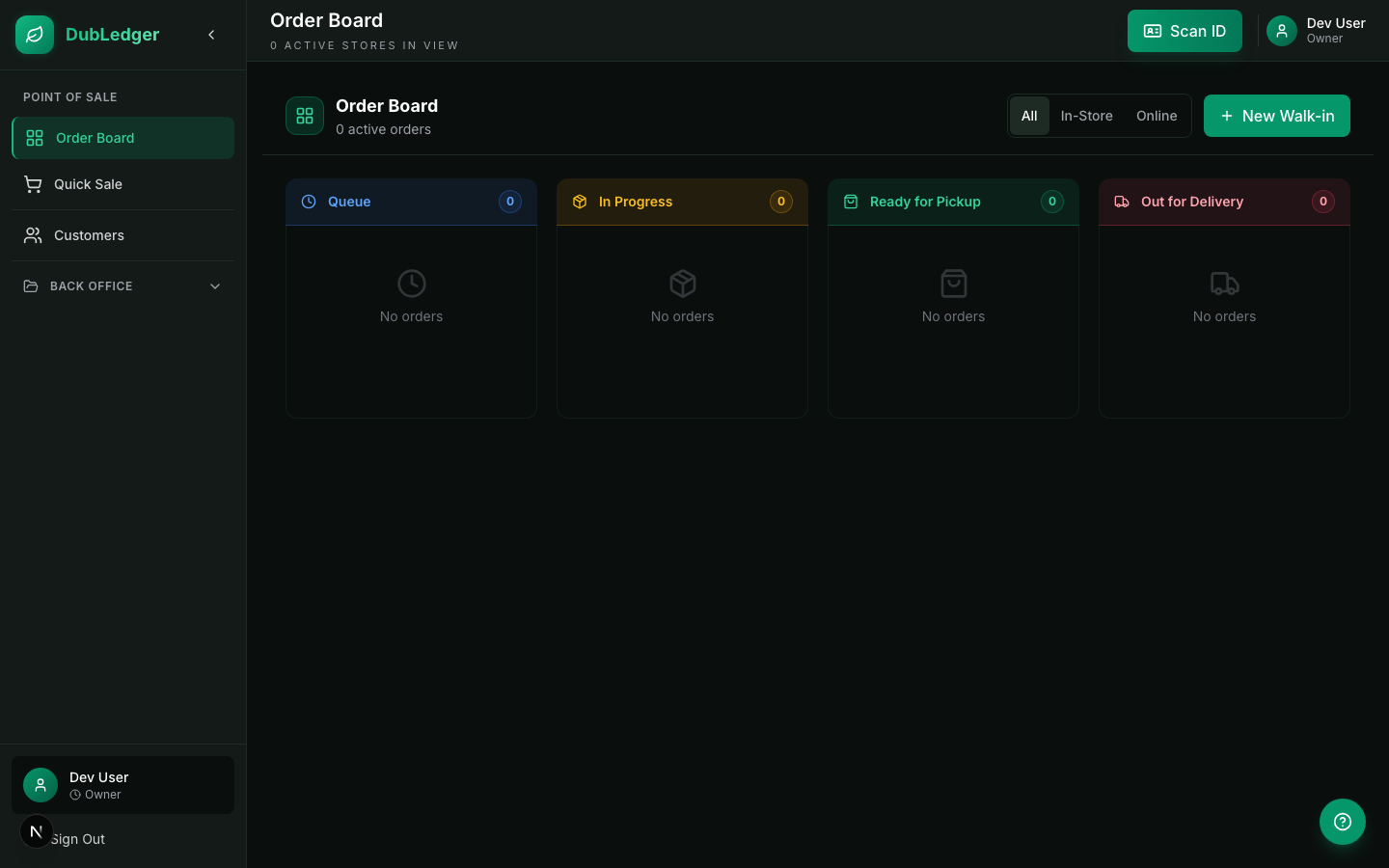
The Order Board is a Kanban-style board for managing order fulfillment. It gives you a visual overview of all orders and their status.
Accessing the Order Board
Press F5 or click Order Board in the sidebar. The board displays orders in columns based on their fulfillment status.
Board columns
The Order Board has columns representing the fulfillment lifecycle. Common columns include:
- Queue: new orders waiting to be started.
- Online Pickup / Delivery: orders being prepared.
- In Progress: orders actively being fulfilled.
- Ready for Pickup: prepared orders waiting for customer pickup.
- Out for Delivery: orders dispatched with a driver.
Moving orders between columns
- Drag and drop: click an order card and drag it to the next column.
- Quick actions: click an order card to open the detail view with action buttons.
- Automatic: some status changes happen automatically, such as delivery orders moving to Out for Delivery when a driver starts the route.
Order card information
Each order card shows:
- Order number and customer name.
- Order type (pickup, delivery, in-store).
- Items and quantities.
- Total value.
- Time placed (with color-coded urgency).
- Payment status.
Completing an order
- Click an order card to open the detail modal.
- Review the items and verify everything is in stock.
- For pickup orders, click Mark Ready when prepared.
- When the customer arrives, click Complete Order.
- For delivery orders, completion includes proof-of-delivery capture.
- The order moves out of the board and into transaction history.
Handling out-of-stock items
If an item is out of stock, use the Order Substitution Workflow to replace it with an available product.