Tablet Mode
Using DubLedger on tablets with the optimized tablet interface.
Tablet Mode
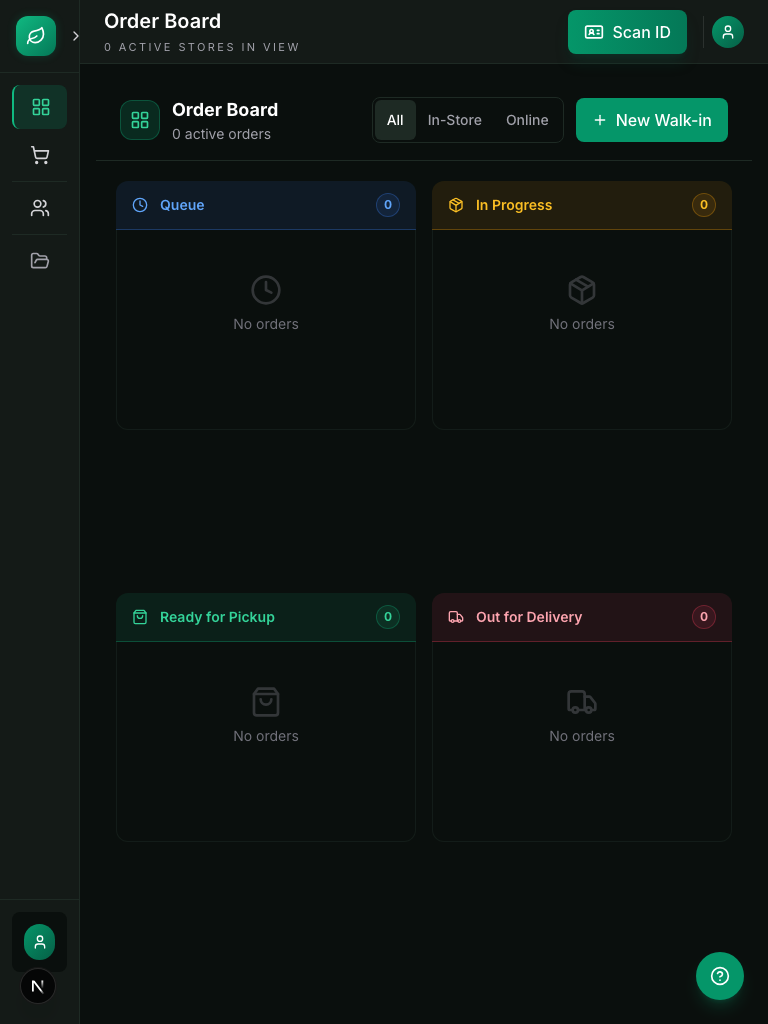
DubLedger automatically detects tablet devices and switches to an optimized tablet interface.
Tablet vs desktop interface
Desktop layout
- Persistent left sidebar navigation.
- Wider product grid.
- Mouse-optimized controls.
Tablet layout
- No persistent sidebar, maximizing screen space.
- Bottom tab bar for navigation.
- Back-office access via a slide-up sheet.
- Large touch targets (minimum 44x44px).
- Swipe gestures for cart management.
Tablet navigation
Bottom tab bar
- Quick Sale: the POS terminal for processing sales.
- Order Board: the Kanban fulfillment board.
- Products: product and inventory management.
- More: access to all other features.
Back-office sheet
- Swipe up from the bottom to access back-office features: Customers, Analytics, Compliance, Settings, and Delivery.
- Swipe down or tap outside to dismiss.
Optimized features
Quick Sale (tablet)
- Larger product tiles for easier tapping.
- Split view: products on the left, cart on the right.
- Swipe left on cart items to remove.
- Large quantity adjustment buttons.
- Full-screen checkout modal.
Device detection
The system detects tablets based on screen size and touch capability. You can also manually switch layouts in Settings → Display.